How it works
How a course is made
Four steps, each one ending with something you can read and change. AI writes drafts; you decide what is kept, what is rewritten and what is exported.
Overview
Describe or upload
Write what the course should teach, or upload the documents it should be based on. Choose the language, the number of modules and a theme.
- In
- Topic text, or up to 5 PDF, DOCX, PPTX files
- Out
- A course request
- Cost
- Free
Approve the outline
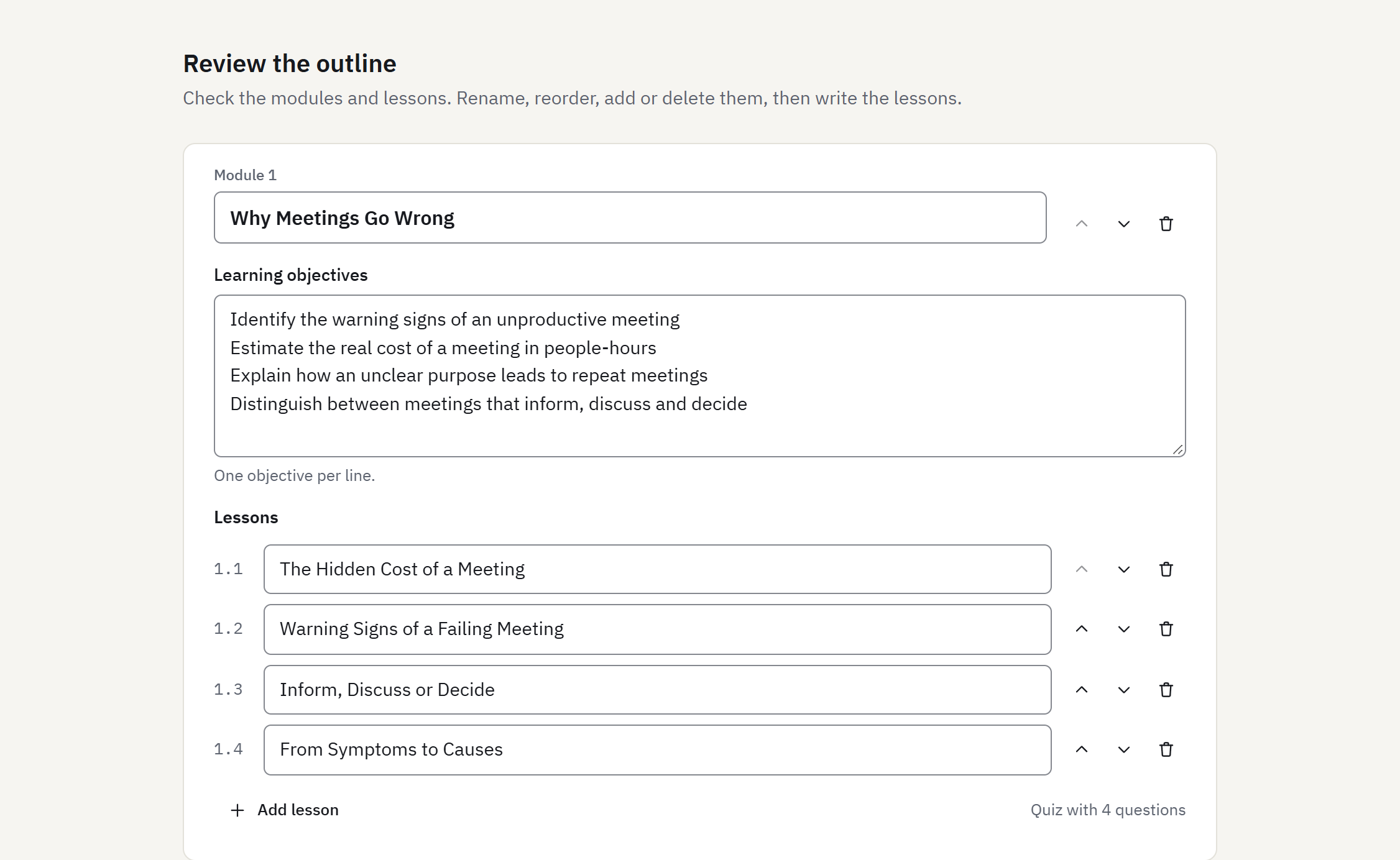
Read the proposed modules, page titles, learning objectives and quiz questions. Rename, reorder or delete anything before lessons are written.
- In
- Your request
- Out
- Course outline
- Cost
- Uses one course from your balance (or your trial course)
Review and edit lessons
Lesson pages are written for every module, with interactive elements and a graded quiz. Edit text in place, rewrite a single page, adjust questions and the pass mark.
- In
- Approved outline
- Out
- Lessons and quizzes
- Cost
- Included in the course, with up to 20 page rewrites
Export
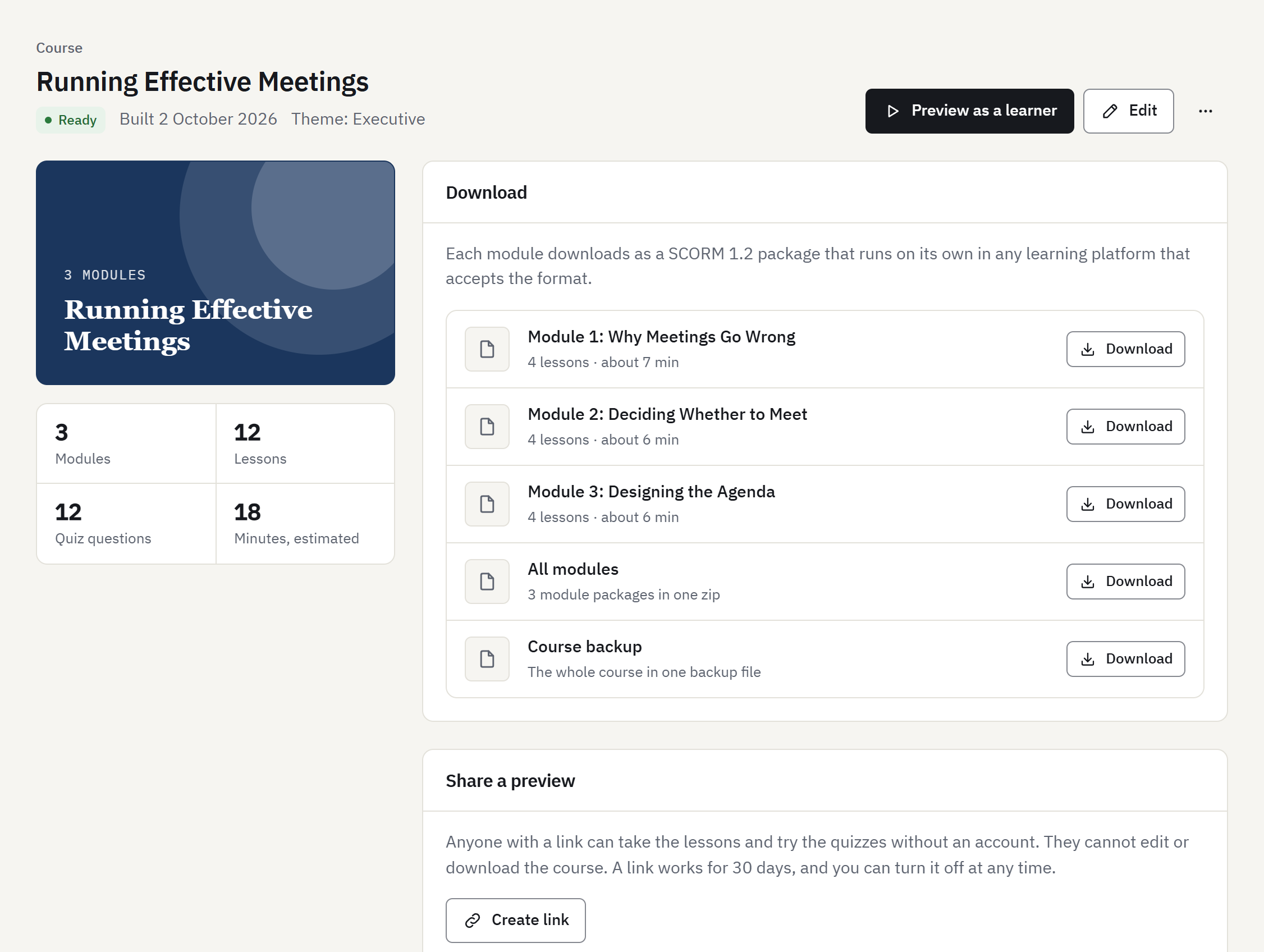
Build the course, then download a SCORM 1.2 package per module or all modules in one file, and after any purchase a full course backup file. Share a preview link with reviewers if you like.
- In
- Reviewed course
- Out
- SCORM 1.2 zip files, full course backup
- Cost
- Included, as often as you need
§ 01Describe or upload
Start from a topic or from your documents
From a topic
Describe what the course should teach and who it is for. A sentence works; a paragraph with the audience, their level and the points that matter works better.
From documents
Upload up to 5 files in PDF, DOCX, PPTX format. Course AI Builder extracts their text and builds the course from it. You can add a topic description to say what to focus on.
- PDF: the text layer is read. Scanned PDFs without a text layer are not supported; run text recognition on them first.
- DOCX: the document text is read.
- PPTX: slide titles, slide text and speaker notes are read, in slide order.
- The combined text is read up to about 40,000 characters. Longer material is cut, so upload the parts that matter or split the subject into several courses.
Choices you make before generating
| Language | The language the lessons and the quiz are written in. |
|---|---|
| Modules | How many modules the course has: up to 10, or up to 3 on the free trial. |
| Theme | One of the lesson themes (All 6 themes after any purchase; Executive on the trial). It applies to every page and the quiz. |
On the free trial, documents can total up to 2 MB and 20 pages. This step is free.
§ 02Approve the outline
Read the plan before anything is written
What the outline contains
- A course title and summary.
- The modules, in order, each with a one-sentence introduction.
- Learning objectives for every module.
- The title of every lesson page, one sub-topic per page.
- The module quiz: questions, answer options, the correct answers and a short explanation for each.
What you can change
- Rename the course, modules and pages, and edit summaries and objectives in place.
- Reorder modules and pages by dragging them.
- Delete modules and pages you do not want.
- Edit, add and remove quiz questions, choose the correct answers and set the pass mark.
Nothing is charged per step: the outline, lessons, rewrites and exports are all part of the course.
§ 03Review and edit lessons
Every page is yours to check and change
What is written
For each module, a set of lesson pages that follow the outline. The first page previews the module’s sub-topics, the middle pages explain one sub-topic each with an interactive element, and the last page sums up the module before the quiz. See the element types.
Review tools
- Edit any text in place: headings, paragraphs, objectives, questions and answers.
- Rewrite a single page with AI, up to 20 times per course, optionally saying what should change, for example shorter, more examples or simpler words. The new version replaces the page.
- Preview the course as a learner, at phone, tablet or full width, before you build it.
- Change quiz questions, the correct answers and the pass mark (60% unless you change it).
What to check before you export
- Facts, figures, dates, laws and procedures, against your own sources.
- Names, quotations and their attribution. The generator adds quotations to pages; confirm each one is real and correctly attributed, or remove it.
- Quiz answer keys and explanations: one wrong key marks correct learners as failing.
- Examples and scenarios: do they fit your audience, country and organisation?
- Terminology and tone in the course language.
- Anything summarised from your documents: summaries can drop conditions and exceptions.
§ 04Export
Download standard files and load them into your LMS
| Trial and purchasesOne module | A SCORM 1.2 zip for one module, with its lesson pages and its quiz. |
|---|---|
| Trial and purchasesWhole course | One zip that holds a numbered SCORM 1.2 zip per module, in course order. |
| After any purchaseFull course backup | The whole course in one backup file: a section per module with its objectives and its package. See exports for the format. |
Building turns the reviewed lessons and quizzes into one package per module; like downloading, it is included. In your LMS, add each zip as a SCORM package. The quiz reports a score from 0 to 100 and a passed or failed status against the pass mark, so you can use it for completion and grading in the LMS.
Share a preview. Before or instead of exporting, create a preview link. Anyone who has it can take the lessons and try the quizzes without an account, but cannot edit or download the course. A link works for 30 days, and you can turn it off at any time.
§ 05Pricing
What one course includes
- The outline, lessons and a graded quiz for up to 10 modules (3 on the trial).
- Up to 20 page rewrites with AI.
- Editing, previews, preview links, building and exports, as often as you need.
- A course is used when you start generating it. Purchased courses never expire.
Packs of 1, 5 or 10 courses. Any purchase removes the trial watermark and unlocks all lesson themes, longer courses, the full course backup and the brand kit for your account.
§ 06Control
What you control, and where AI is used
You decide
- The topic, the source documents and what to focus on
- The language, the number of modules and the theme
- The outline: modules, pages, objectives and quiz questions
- Every word on every page, and which pages are rewritten
- The answer keys and the pass mark
- When to export, what to export and where it is published
Where AI is used
| Step | AI |
|---|---|
| Drafting the outline and quiz questions | Yes |
| Writing lesson pages | Yes |
| Rewriting a page you choose | Yes |
| Module illustrations (optional, never showing people) | Yes |
| Scoring the quiz | No: fixed rules in the package |
| Building and exporting packages | No |
| Running the course in your LMS | No: packages contain no AI and make no network requests |
Text and images are generated through third-party AI model providers, listed on the subprocessors page. They receive the topic, document text and course content needed for each request, not your name or email address.
Review is required
AI drafts can be wrong. A person must read them before learners do.
Generated text can contain errors, outdated information, invented details and quotations that were never said. Course AI Builder marks every package as AI-generated, but responsibility for what you publish stays with you. Read every page and every question before you export.
Try the whole flow on one course
The free trial covers one course of up to 3 modules, from outline to SCORM export. No payment details are needed to sign up. After that, pay per course; there is no subscription.